How to request payments from your clients
A payment request asks a client to pay you. Talentir issues the invoice, shows the client how to pay, matches the bank transfer and credits the money to your Talentir balance.
A payout sends money out of your Talentir account. A payment request does the opposite: it brings money in.
With a payment request you ask a client, for example a brand, an agency or another company, to pay you. Talentir does these steps for you:
- It issues the invoice, with your company data and a unique invoice number.
- It gives the client a payment page with the bank details and the payment reference.
- It watches the incoming transfers and sets the request to paid when the money arrives.
- It credits the money to your Talentir balance, so that you can pay your creators with it immediately.
Use payment requests when you invoice a brand for a campaign, when you collect money from a client before you pay the creators, or when you want your incoming and outgoing money in one place.
What you need before you start
Payment requests are for business teams. Before you can send the first one, you need:
- A verified business. Bank transfers are only credited to verified teams.
- Your company address in the team settings. It goes on every invoice.
- Your VAT number in the team settings, if your country has VAT.
- A company in the EU, Switzerland, the United Kingdom, the United States or Hong Kong.
If something is missing, the dialog tells you what to do and sends you to the correct page. Only team owners and admins can see and manage payment requests.
Where to find payment requests
Open Finances → Payment Requests in the menu on the left. The table shows all your requests with their invoice number, tags, payer, status and amount.
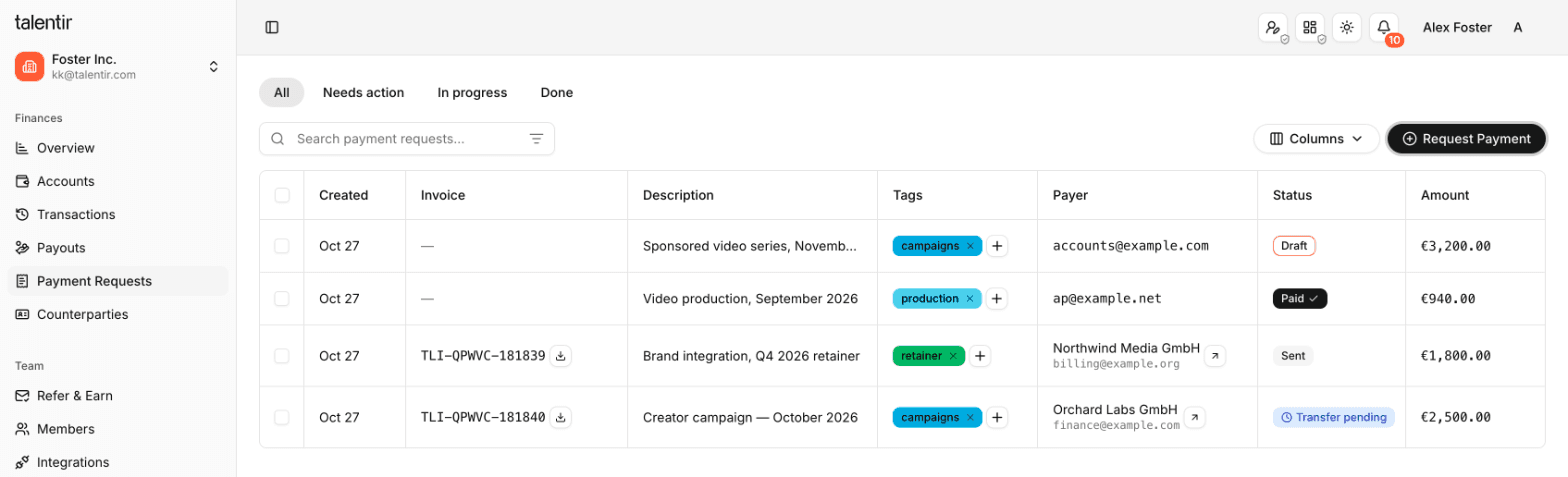
The quick filters above the table show the drafts that you must still send (Needs action), the requests that wait for money (In progress) and the closed ones (Done).
Step 1: Make the request
Click Request Payment and fill in the fields:
- Amount and currency. EUR, USD, CHF or GBP. Give the net amount. Talentir adds VAT on the invoice where VAT applies.
- Description. What the payment is for. This text goes on the invoice.
- Payer. The client who must pay.
- Tags (optional). Your own labels, for example a campaign or a client group. You can filter the table by tag, and you can change tags at any time.
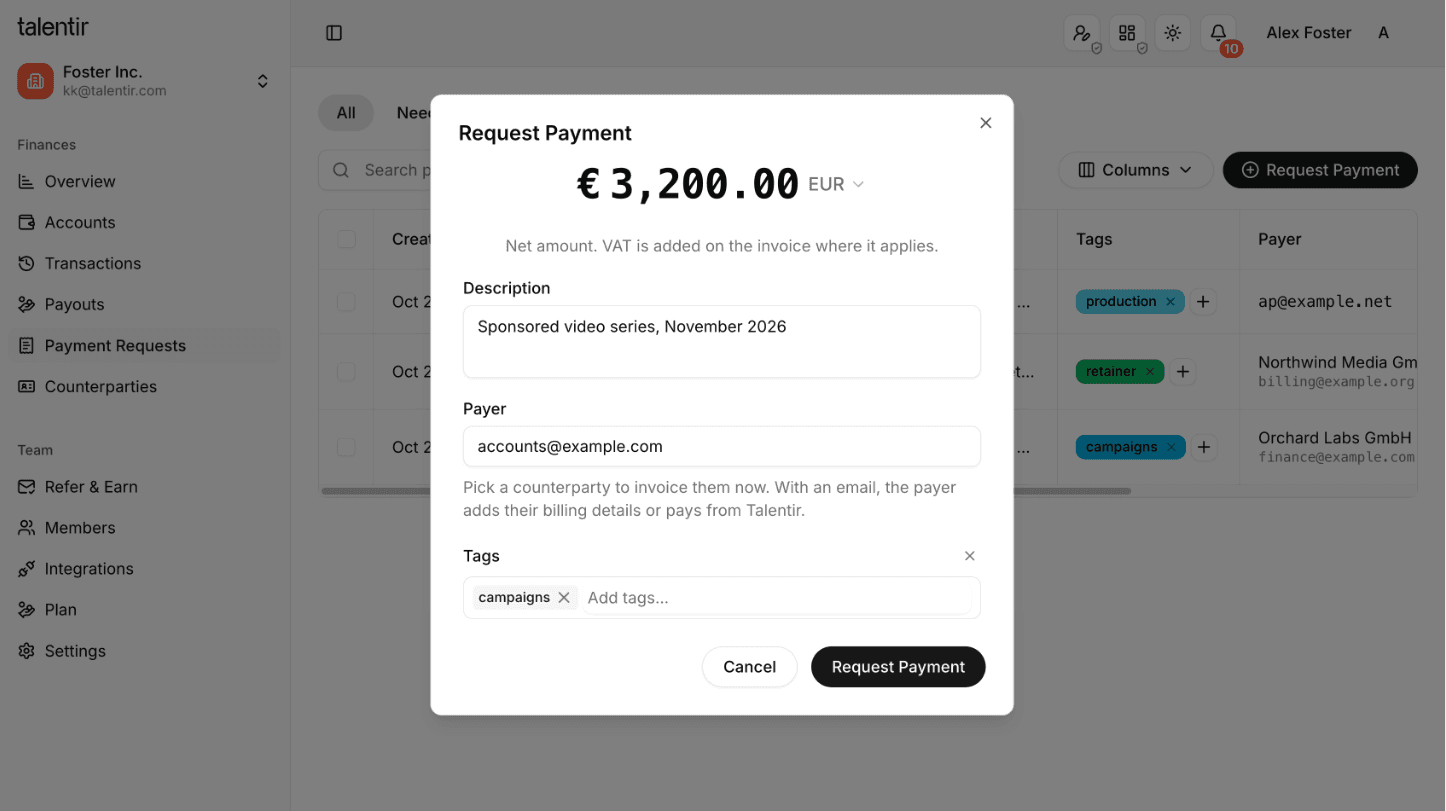
For the payer you have two options.
Only an email address. Talentir does not issue the invoice yet. The client enters the billing details on the payment page, and Talentir then issues the invoice to that address. Use this option when you do not know the billing address of the client.
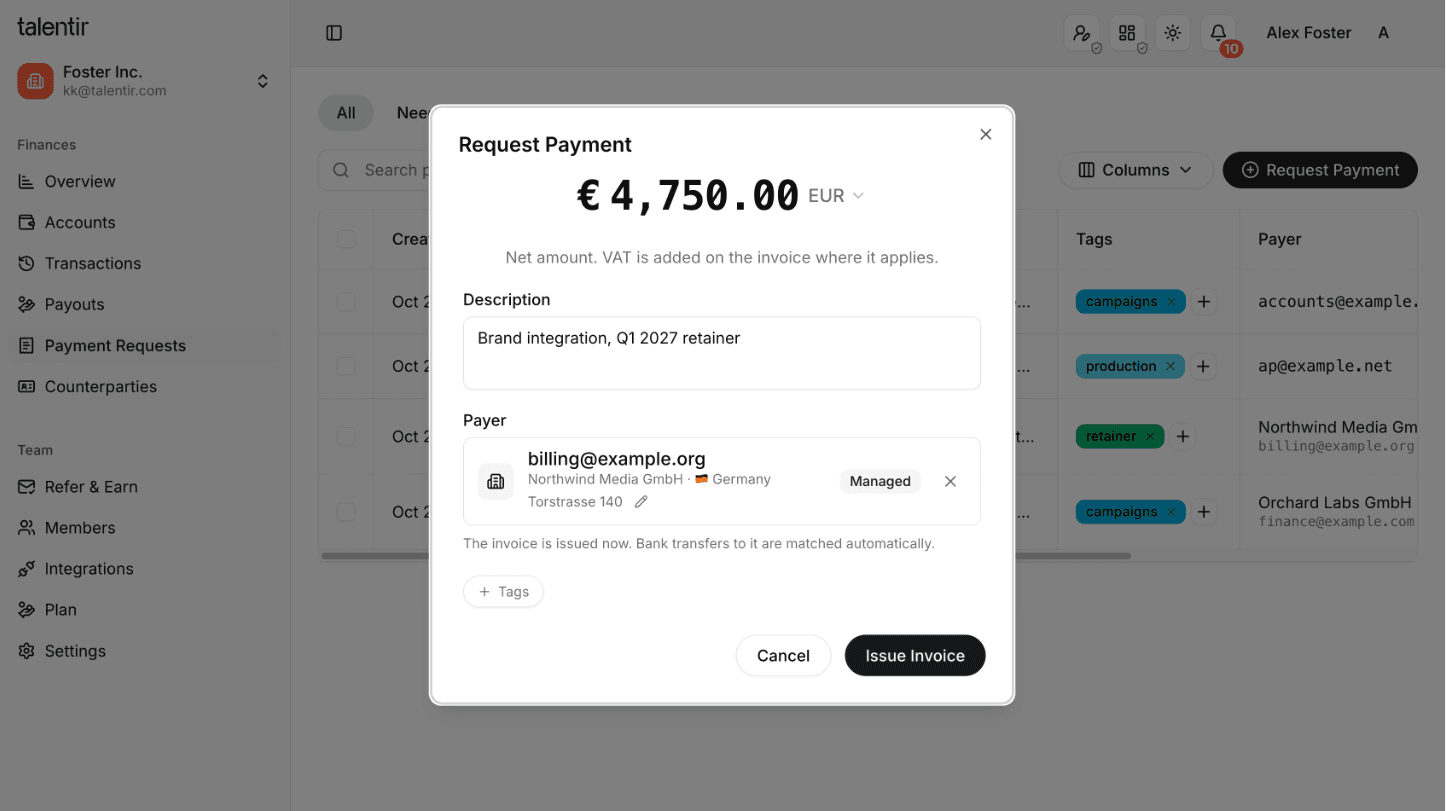
A counterparty with a billing address. Talentir issues the invoice immediately, and the button changes to Issue Invoice. Select a counterparty that you saved before, or add a new one in the same dialog.
Step 2: Send the request
After you save, Talentir asks how the client gets the request.
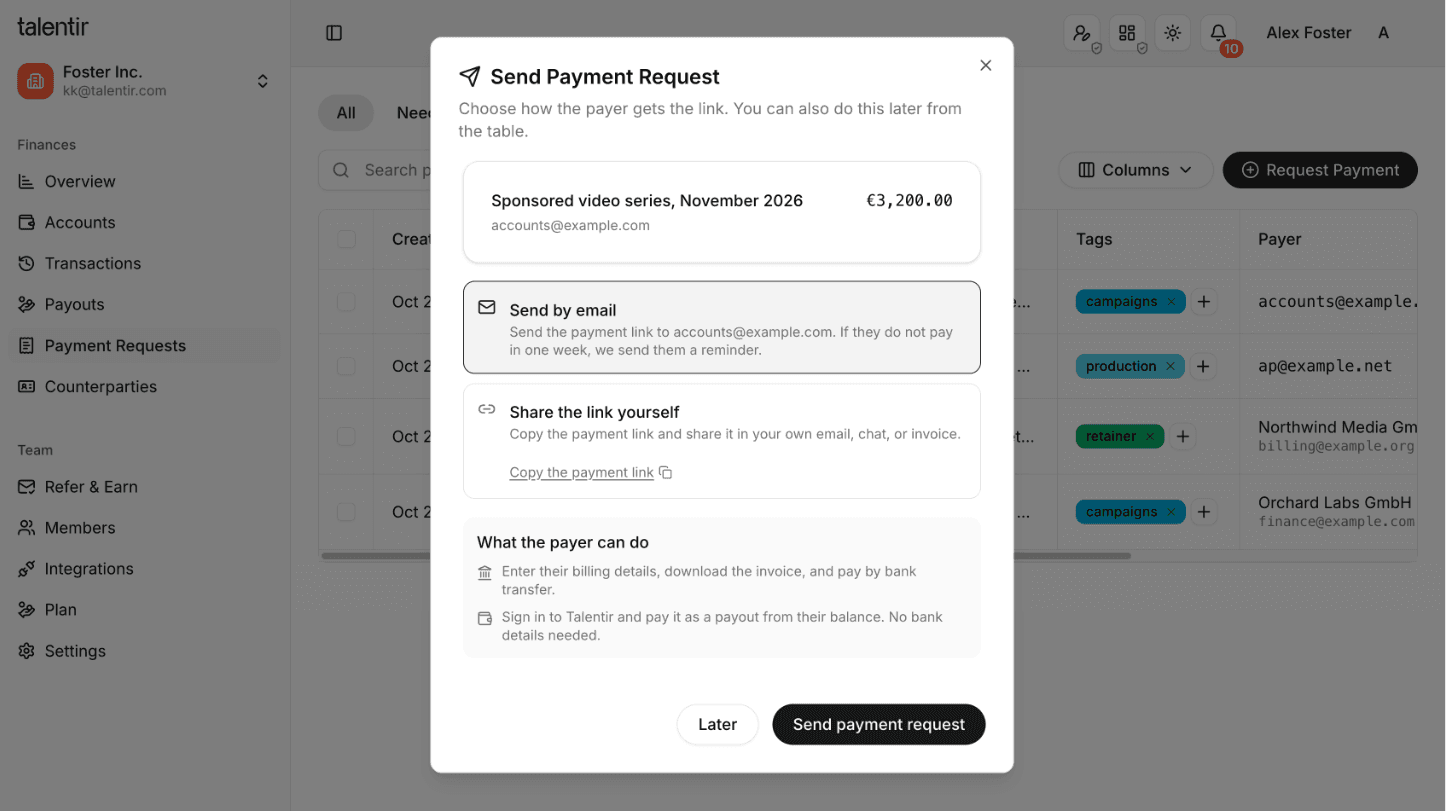
- Send by email. Talentir sends the payment link to the client. If the request already has an invoice, the email contains the invoice as a PDF. If the client does not pay in one week, Talentir sends one reminder.
- Share the link yourself. Copy the payment link, or download the invoice, and send it in your own email, chat or client portal. Talentir sends no reminder for these requests.
Click Later to send it afterwards. A request to an email address stays a Draft until you send it. While it is a draft, you can still edit it, and the client cannot open it. You can send a draft at any time from the table or from the details panel.
Step 3: What the client sees
The link opens a payment page with your company name, the description and the amount.
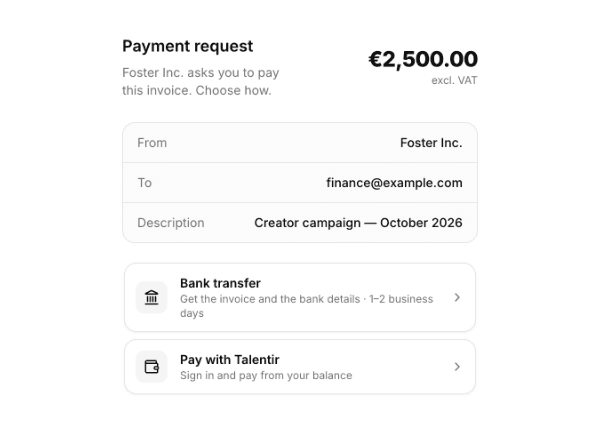
The client has two ways to pay.
Bank transfer
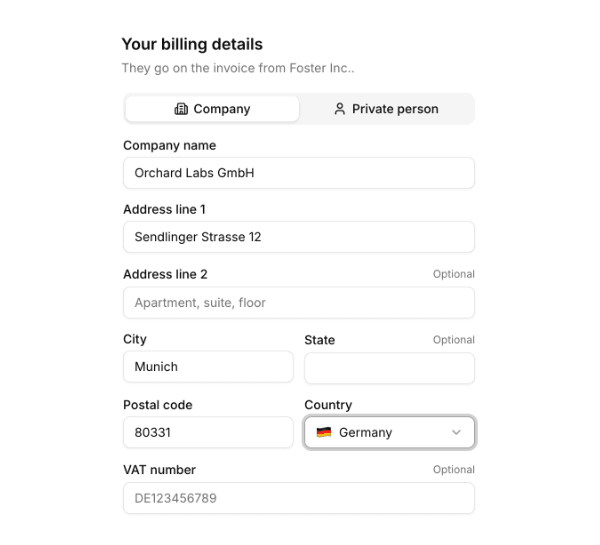
If there is no invoice yet, the client first enters the billing details. Talentir then issues the invoice to that address and sends it to the client by email.
The next screen shows the bank details, the amount and the payment reference. The client can copy each line and download the invoice as a PDF.
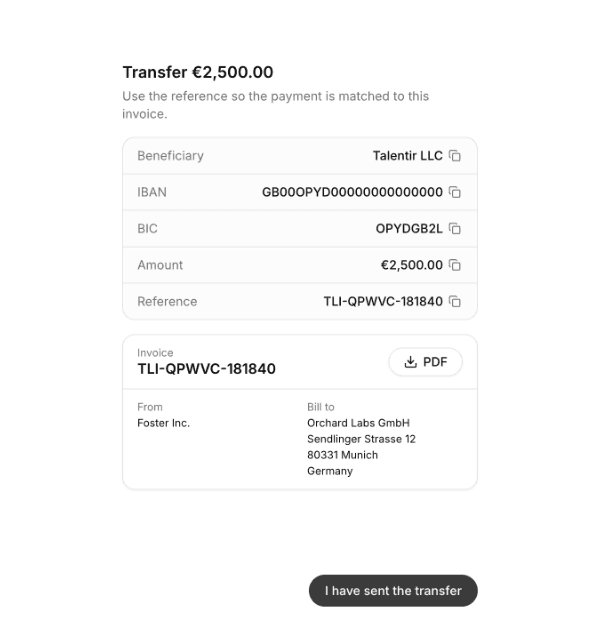
Two things are important here:
- The money goes to your Talentir account, not to your own bank account. The beneficiary can be Talentir. This is correct: Talentir receives the transfer for your team and credits the money to your Talentir balance. This usually takes one to two business days.
- The reference must stay on the transfer. The reference is the invoice number. Talentir uses it to find the correct request.
When the client clicks I have sent the transfer, your request goes to the status Transfer pending. The client does not need a Talentir account to pay by bank transfer.
Pay with Talentir
If the client has a Talentir business account, they can sign in and pay from their balance. Talentir makes a payout from their account to your Talentir account, and they approve it in their Payouts like any other payout. This option is only available while the request has no invoice.
The invoice
The invoice shows your company as the issuer, the client as the customer, the description, the VAT and the payment instructions. The invoice number is also the payment reference.
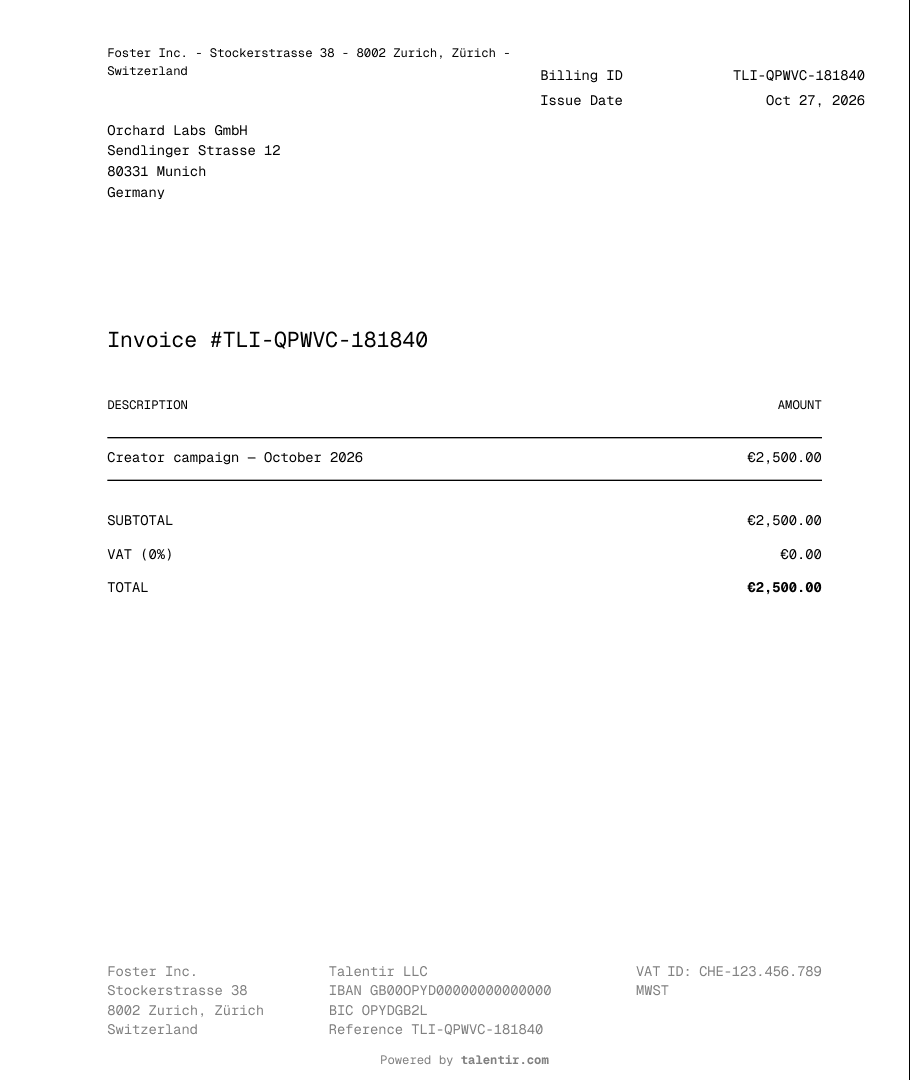
Each team has its own invoice number series, and the numbers follow in sequence. An issued invoice does not change. To correct an invoice, cancel the request and make a new one.
Step 4: Follow the status
Click a row to open the details panel. It shows the amounts, the invoice, your tags, the buttons for the next step and a timeline of everything that happened.
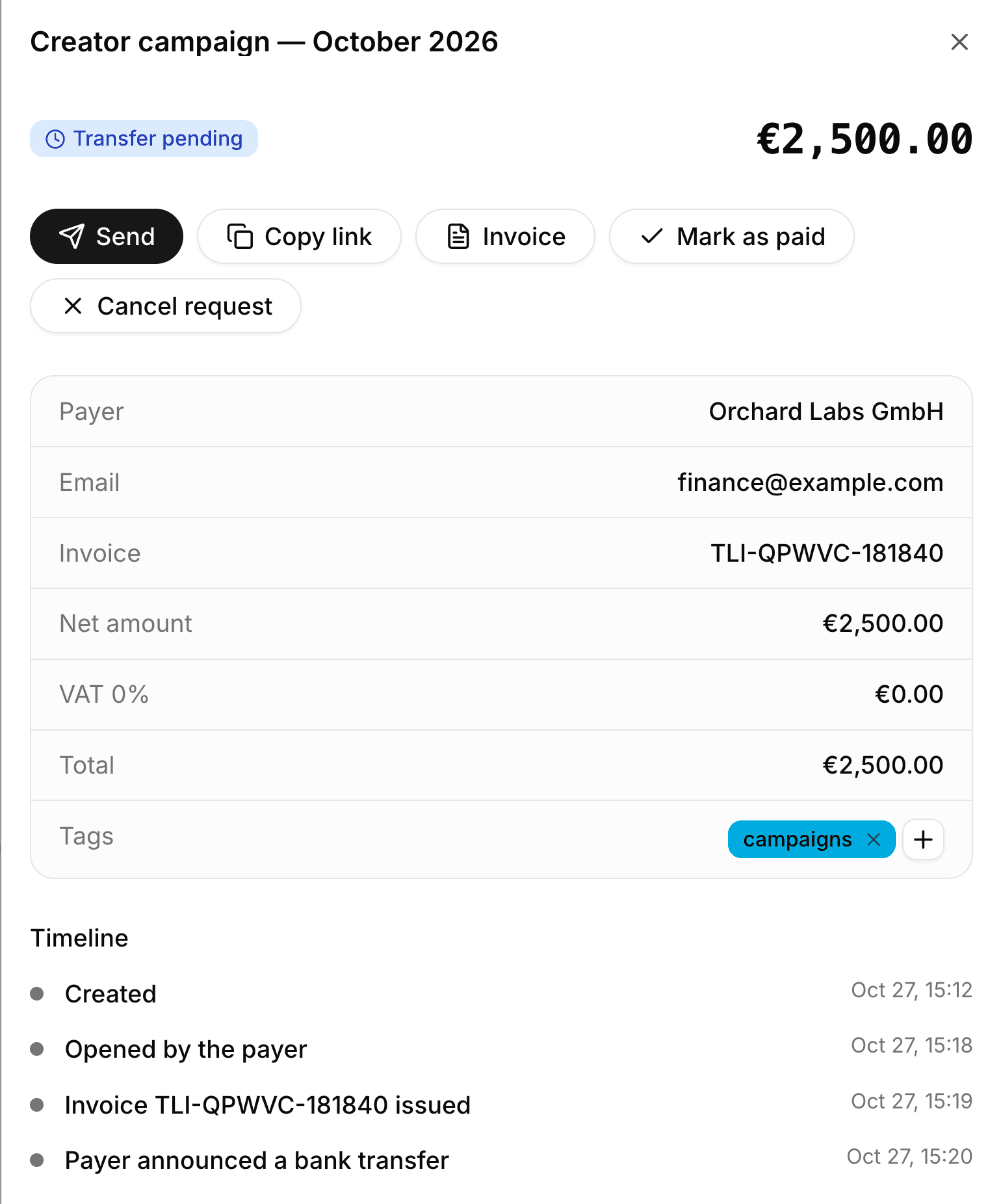
These are the statuses:
- Draft. Saved, but not sent yet. The client cannot open it.
- Sent. The request is open, but the client has not opened the link yet.
- Opened. The client opened the payment page.
- Transfer pending. The client sent a bank transfer. The request is paid when the money arrives.
- Payout pending. The client chose Pay with Talentir and must approve the payout.
- Partially paid. Only a part of the amount arrived.
- Paid. The full amount arrived.
- Cancelled. You cancelled the request.
How Talentir matches a payment
Talentir sets a request to paid automatically when all of these are true:
- The reference of the transfer contains the invoice number.
- The currency is the same.
- The amount is exactly the amount of the invoice.
- Only one open request has that invoice number.
If one of them is not true, the money stays a normal deposit in your balance and the request stays open. You then have two options in the details panel:
- Link deposit. Select the deposit that paid this request. Talentir shows only deposits with the same currency and exactly this amount that pay no other request.
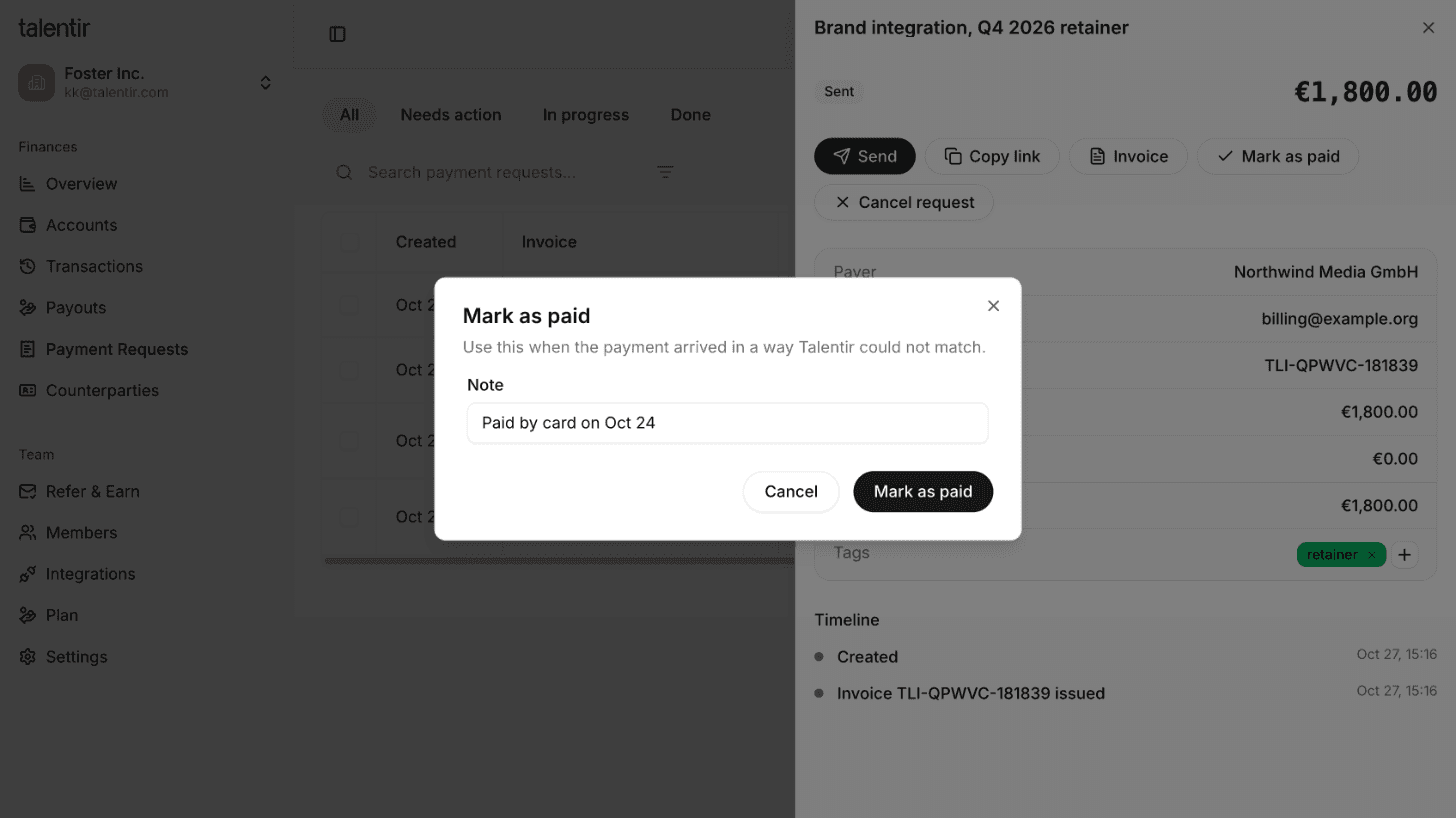
- Mark as paid. Use this when the money came in a way that Talentir cannot match, for example a card payment. Add a short note. The note stays in the timeline.
Cancel a request
Click Cancel request. The client can no longer pay through the link. If an invoice was issued, Talentir makes a credit note that cancels the invoice in full. If you sent the request by email, the client gets the credit note by email. If you shared the link yourself, send the credit note to the client yourself.
Good to know
- A request is paid by one payment. Talentir does not automatically match a payment that is divided into parts.
- The payment page shows the bank details only for a currency in which your team can receive transfers.
- The invoice is due on receipt. There is no due date field.
- You can also make and send payment requests with the Talentir API.
If you have a question, write to us in the chat on the right. You can write in your own language.
Last updated on
How to Manage Hundreds of Small-Scale Creator Payments Every Day
The rise of User Generated Content (UGC) has revolutionized marketing, but it has created a logistical nightmare for finance departments. Unlike traditional influencer campaigns that involve a few high-value invoices, UGC operations often require sending hundreds of small payouts to creators daily.
How to set up Split Payments on Talentir
Do you work with a partner? Do you have an editor? Or maybe even a full team of assistants, specialists and people you need to split your YouTube revenues with? Talentir does that for you automatically.